
We’ve worked with many task-tracking applications over the years, including AtTask (now Adobe Workfront), Trello, ServiceNow, Microsoft Planner, etc. While each has its strengths, our favorite by far is Atlassian Jira. When you combine Jira with Confluence and Bitbucket, you unlock an incredibly powerful trio that takes task management, documentation, and development to the next level.
As managers Geospatial Programs, we’ve found Jira to be an indispensable tool for keeping projects on track. Geospatial Programs often involve managing numerous interconnected projects (feature classes, dashboards, integrations, and code/workbenches) spanning multiple teams and timelines. Over time, projects can grow in complexity, requiring careful tracking of dependencies, changes, and evolving requirements.
In this post, we’ll highlight some of our favorite features that have made managing a Geospatial Program more efficient, particularly its ability to link related Work Items, code, and maintain documentation across ongoing projects.
- Linking Work Items
- Jira Epics for Organizing Work Items
- Confluence & Jira Work Items
- Smart Commits
- Expansive Writing Space in Jira and Confluence
- Confluence Whiteboards
- Conclusion
Linking Work Items
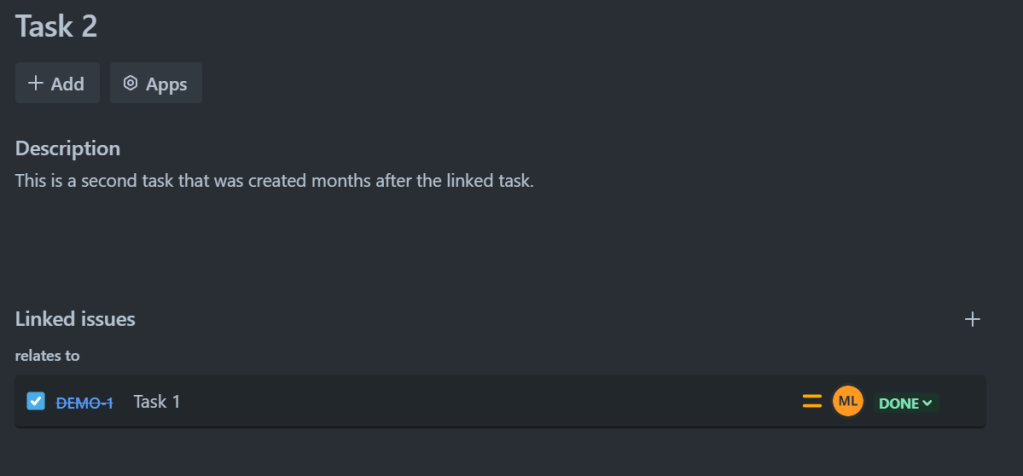
If you’ve been running a Geospatial Program for any length of time, you’ll quickly notice how often projects overlap. A feature class or dashboard built for one department often finds new life in another, leading to modifications and extensions of the original work. Over time, as you develop dozens (or even hundreds) of solutions, keeping track of these connections becomes critical.
This is where Jira truly shines. Its ability to link related Work Items provides a structured way to manage dependencies across projects, even when the work spans months or different team members. By connecting related Work Items, you ensure continuity, track changes efficiently, and maintain a clear view of how your Geospatial Program evolves over time. Links can even show that one Work Items blocks another or that a Work Items is a duplicate.
Jira Epics for Organizing Work Items
Jira allows you to create multiple projects and track your work as Tasks, Sub-tasks, and Stories. However, over the years, we’ve found it much easier to manage all the work for a Geospatial Program in one large project, organizing it with Epics. Think of Epics as mini-projects that help track the overall work and notes for a specific solution, while the Tasks underneath represent the specific steps needed to complete the solution. This approach keeps everything centralized and easier to manage.

Confluence & Jira Work Items
Confluence is a powerful wiki platform that integrates seamlessly with Jira. This tight coupling lets you directly link project or solution documentation to Jira Work Items. Not only does this make it easier to find related information it also ensures that the information remains dynamic and interconnected between the two products. Updates made in Confluence are instantly reflected in Jira, providing a centralized, live source of truth for your projects.
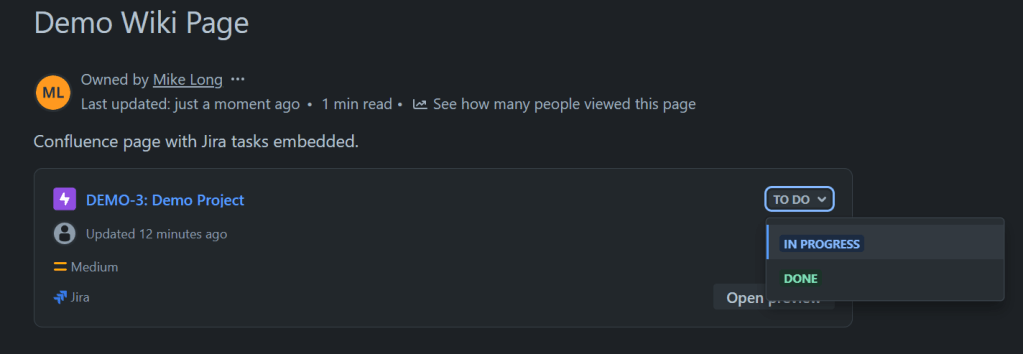
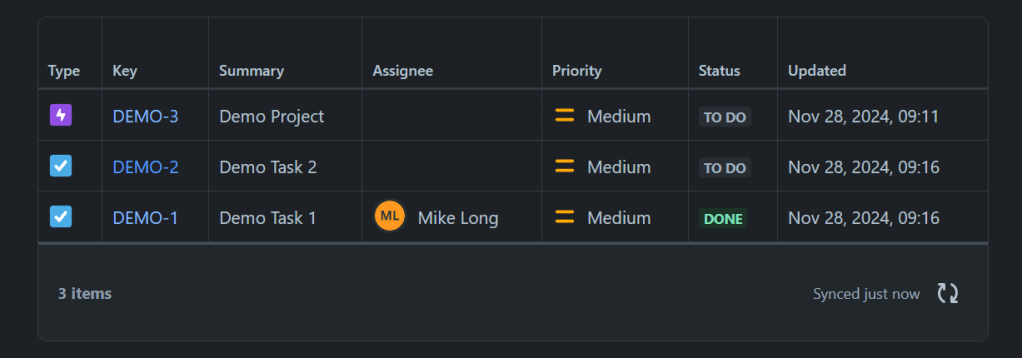
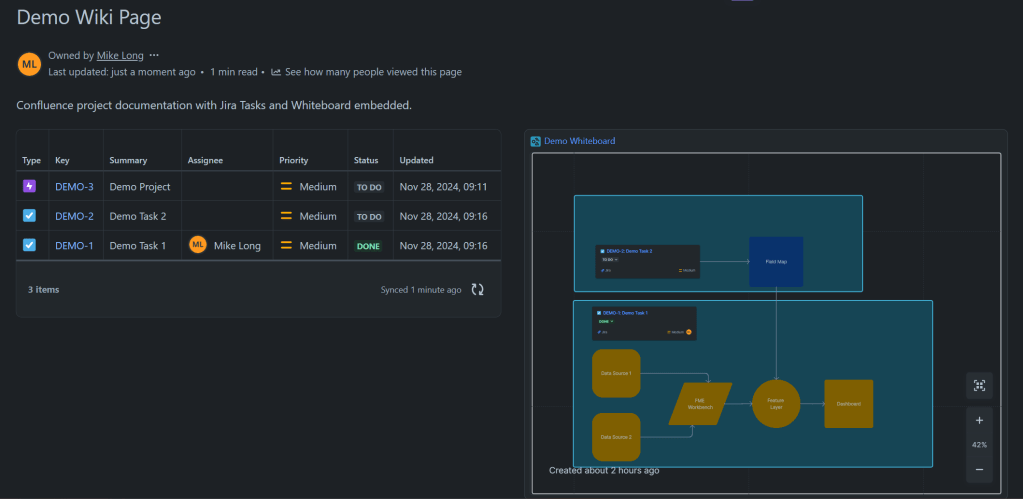
Below is an example of adding a Jira Search Element to a Confluence page. This element has been configured to search for Work Items with the word “Demo” in the summary. This table is refreshed each time the page loads keeping an up-to-date list of tasks as thy are created in Jira. The search terms can be quite advanced if desired, they can even use Jira Query Language (JQL).
You can create new Confluence pages or attach existing ones directly from a Jira Task, with the flexibility to link multiple pages to a single Task.
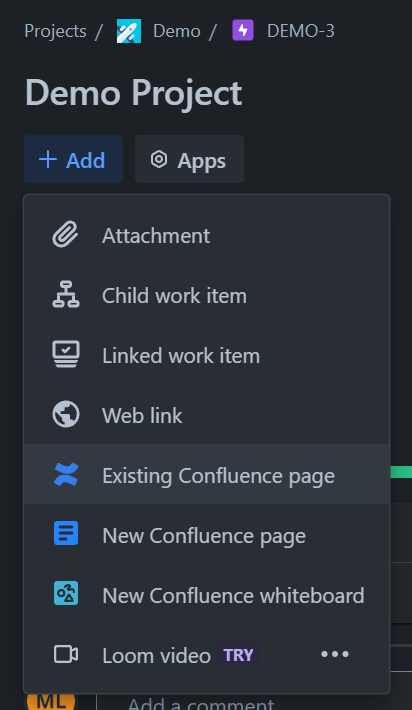

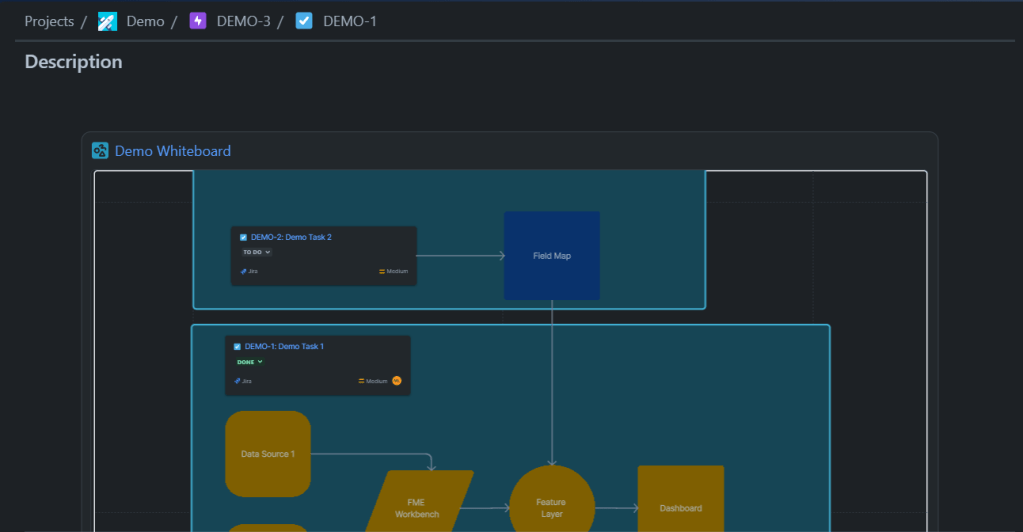
Alternatively, you can add a link to the Confluence page directly in the Jira Task’s description, making the documentation link more prominent.
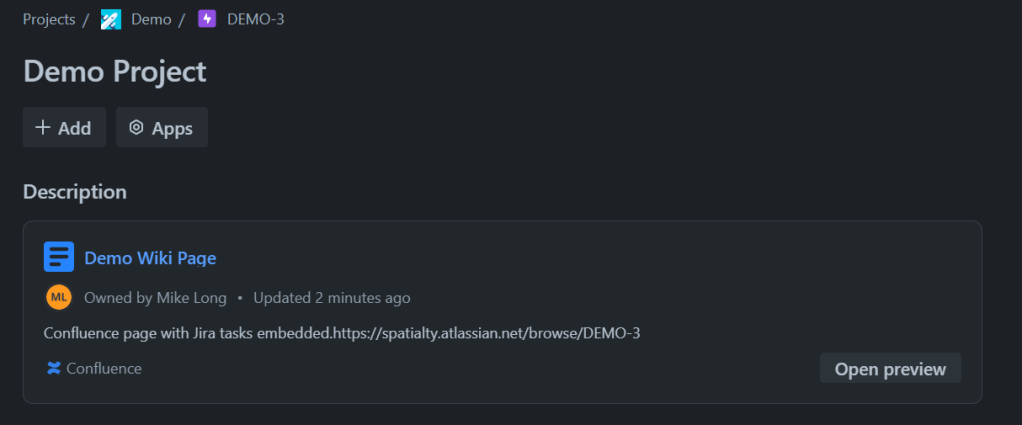
More info on using Jira and Confluence together can be found in the Atlassian documentation.
https://support.atlassian.com/confluence-cloud/docs/use-jira-and-confluence-together/
Smart Commits
We don’t know about you, but after a couple of months (or years), we can’t always remember where a specific script or FME Workbench was saved. By then, we’ve moved on to another project—or two—and created even more scripts and Workbenches along the way. That’s why we rely on a Git (GitHub or Bitbucket) repository and smart commits to link files directly to the Jira Work Item.
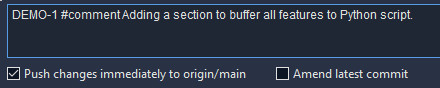
Even when we can’t recall where a particular file/script is saved, we usually remember the project or who we were collaborating with. With Jira’s robust search capabilities, we can quickly locate tasks by searching through their Summary, Description, or Comments.
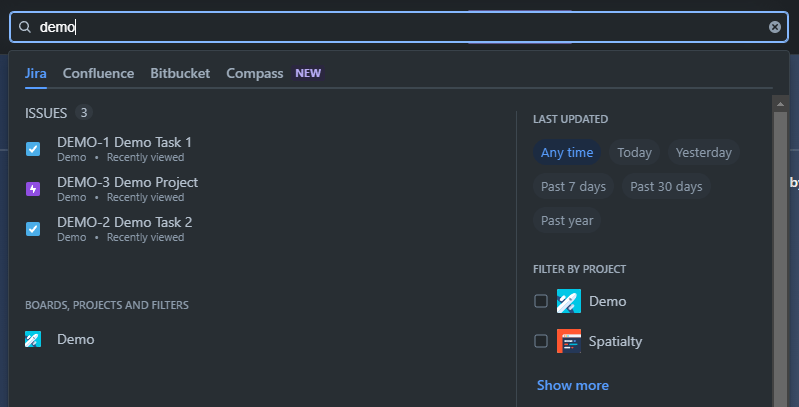
For more advanced searches, Jira Query Language (JQL) allows us to find issues with linked commits, saving time and keeping workflows organized.
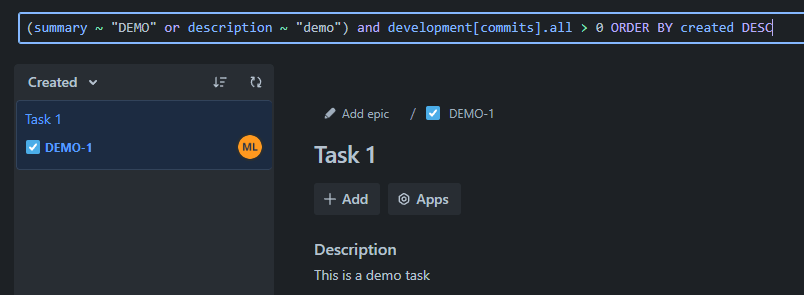
Example of Jira Query Language (JQL) finding tasks with the word “demo” in the Summary or Description, and with at least one linked commit.
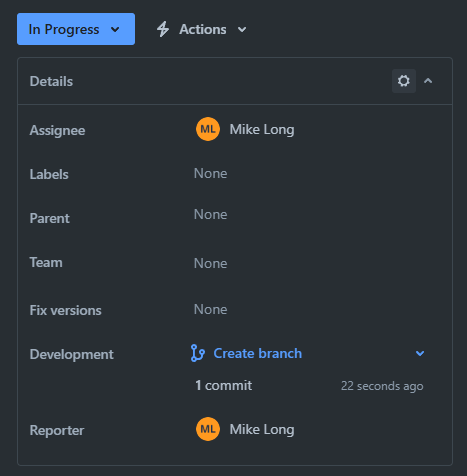
The commit count is displayed in the task details screen. By clicking on it, you can view the commit history, including the repository and the associated messages.

Expansive Writing Space in Jira and Confluence
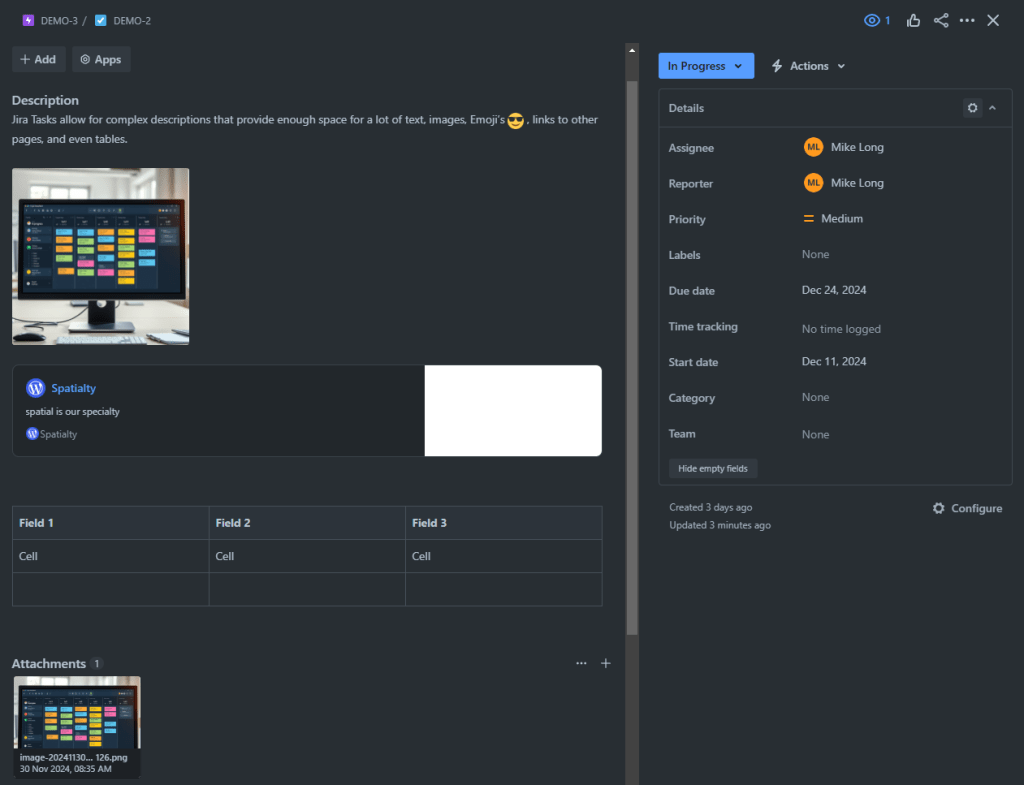
Jira’s description field is incredibly spacious, accommodating up to 32,767 characters. This provides ample room to store detailed information about a task, including text, emoji’s, links to Confluence documentation or other web pages, images, and even Whiteboards (more on this later).
For even greater flexibility, Confluence Pages are an excellent choice. These pages offer virtually unlimited space for documentation (pun intended—content in Confluence is organized into Spaces). While there’s no official limit on the length of a Confluence Page, overly long pages can become difficult to navigate and may cause performance issues. Breaking up content into smaller, linked pages is often a more practical approach for usability and efficiency.
Confluence also offers a suite of powerful features designed to enhance collaboration and streamline documentation. Pages can include dynamic content such as embedded Jira Work Items, task lists, decision logs, and interactive diagrams created with Whiteboards. Its built-in version control allows teams to track changes and view the revision history of a page, ensuring that documentation stays accurate and up to date. Additionally, Confluence supports page comments, inline annotations, and the ability to create new Jira Work Items directly from highlighted text on the page, making it easy for teams to provide feedback and take immediate action—all within the documentation itself.

Confluence Whiteboards
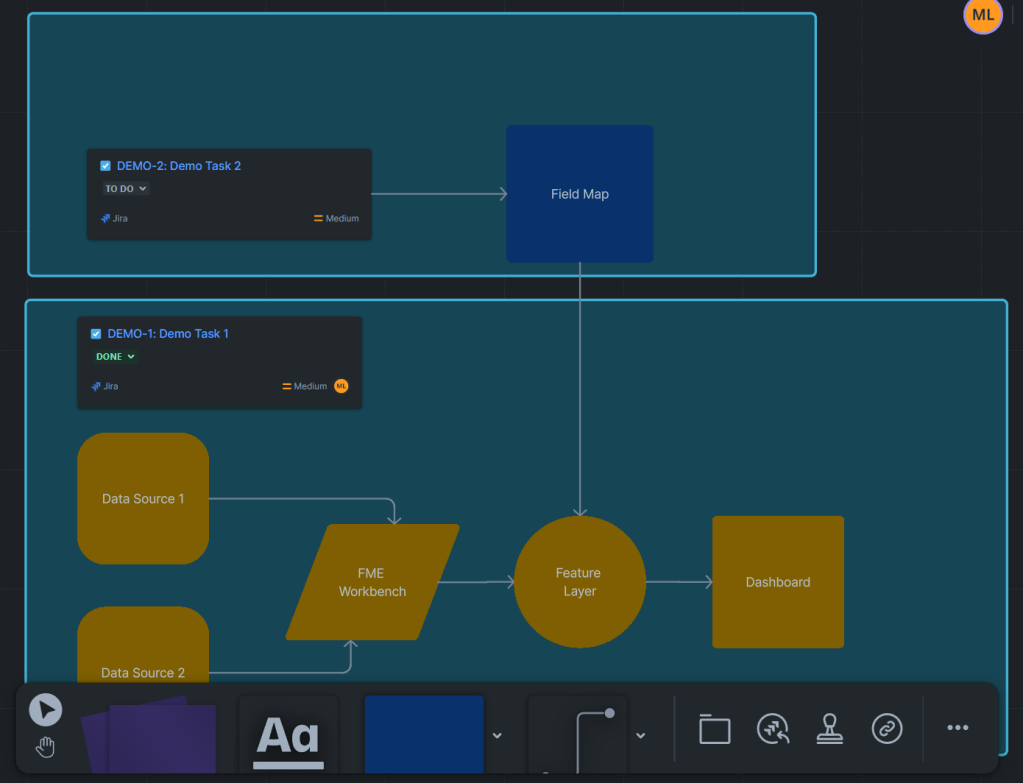
Confluence Whiteboards are a recent addition, and we’ve quickly grown to value them. In the past, we have used tools like Visio with limited success. The biggest challenge was that the diagrams always felt disconnected from the rest of the documentation in Confluence. With Whiteboards now integrated directly into Confluence, diagrams are seamlessly tied to the documentation, making them easier to manage and keeping everything in one place.
Moreover, each item within a Whiteboard can have its own link, allowing you to reference specific sections of even the largest Whiteboards. These links can be added to Jira Work Items or Confluence Pages, creating a powerful way to connect visual elements directly to related documentation or tasks. This level of integration enhances navigation and collaboration, making Whiteboards a valuable addition to your Geospatial Program.
Conclusion
Atlassian’s suite of tools—Jira, Confluence, and Bitbucket (or integrated GitHub), provides a robust platform for managing Geospatial Programs and other complex projects. Their seamless integration simplifies task tracking, documentation, and collaboration, ensuring that all project elements remain interconnected and accessible. Features like task links, smart commits, Epics, and Confluence Whiteboards make it easier to manage the intricate, overlapping workflows that often arise when managing a Geospatial Program.
The best part? Everything demonstrated here was accomplished using the free versions of these tools. This makes it easy for individuals and small teams of up to 10 members to explore and implement these capabilities without financial barriers. Whether you’re managing a small team or a large-scale Geospatial Program, Atlassian’s tools offer scalable solutions to keep your projects organized and your workflows efficient.
What tools are you using to manage your geospatial projects? Do you have any favorite features that help keep things running smoothly? Drop your thoughts in the comments below—I’d love to hear how you’re optimizing your workflows!
Written by Mike Long
Edited by Steph Long, Grammarly, and ChatGPT

 Spatialty